 cekoa
Cekoa, step by step.
Everything you need to share home information, groceries and chores with your household. Every step comes with a screenshot of the app or a short demo.
Open CekoaScreenshots of the web app on a phone, with demo data. The Android and iOS app shows the same screens.
1Create your account and household
Cekoa works per household: everyone in it sees the same information, groceries and chores. One person creates the household; the others join with a code.
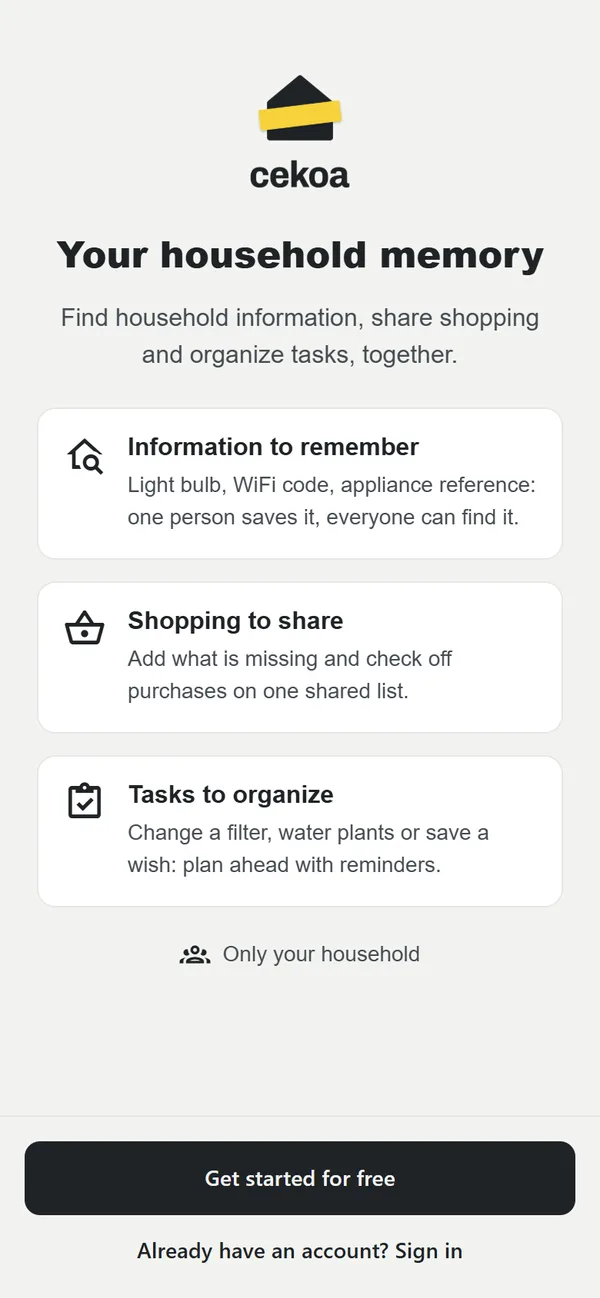
- Open app.cekoa.ch on your phone or computer, then tap Get started for free.
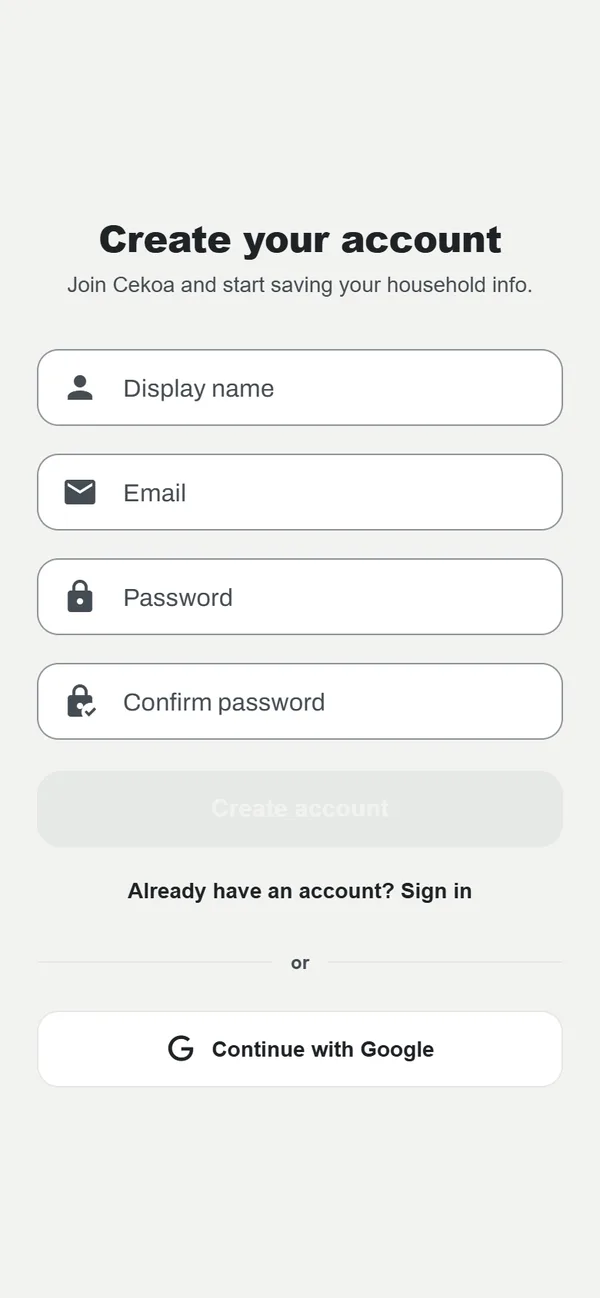
- Enter your Display name, email and a password of at least 8 characters, then tap Create account. You can also choose Continue with Google.
- Confirm your address with the link sent by email, then sign in.
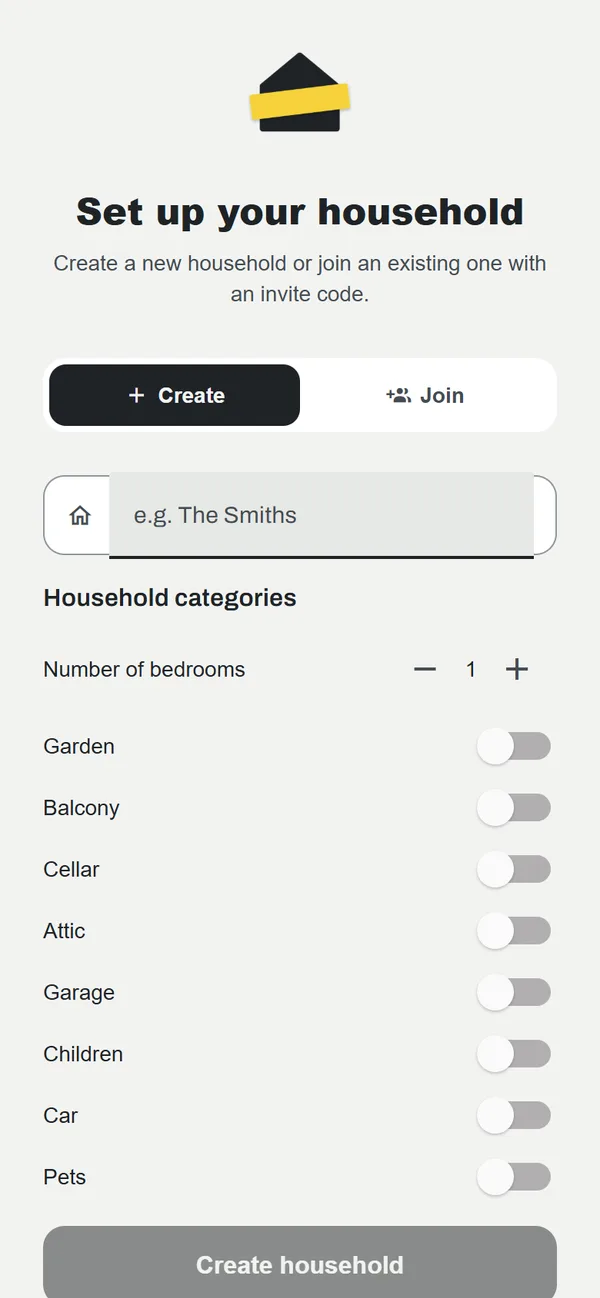
- Choose Create for a new household: give it a name, set the number of bedrooms and switch on the areas you have (garden, balcony, cellar, car, pets…). Tap Create household.
- To join an existing household, choose Join instead, enter the invite code you received and tap Join household.
Already have an account? Tap “Already have an account? Sign in”. Forgot your password? See Account and security.
2Install the app on your phone
On a phone, Cekoa offers to install itself on your home screen. It then opens full screen like an app and remains available without a connection.
- Open app.cekoa.ch in your phone’s browser and sign in. A banner “Keep Cekoa close at hand” appears at the top.
- Android (Chrome, Edge, Samsung Internet): tap Install and confirm. If nothing appears, open the browser menu ⋮ and choose “Install app” or “Add to Home screen”.
- iPhone and iPad: in Safari, tap Install to see the steps: Share button, then “Add to Home Screen” and “Add”.
- Then open Cekoa from its new icon.
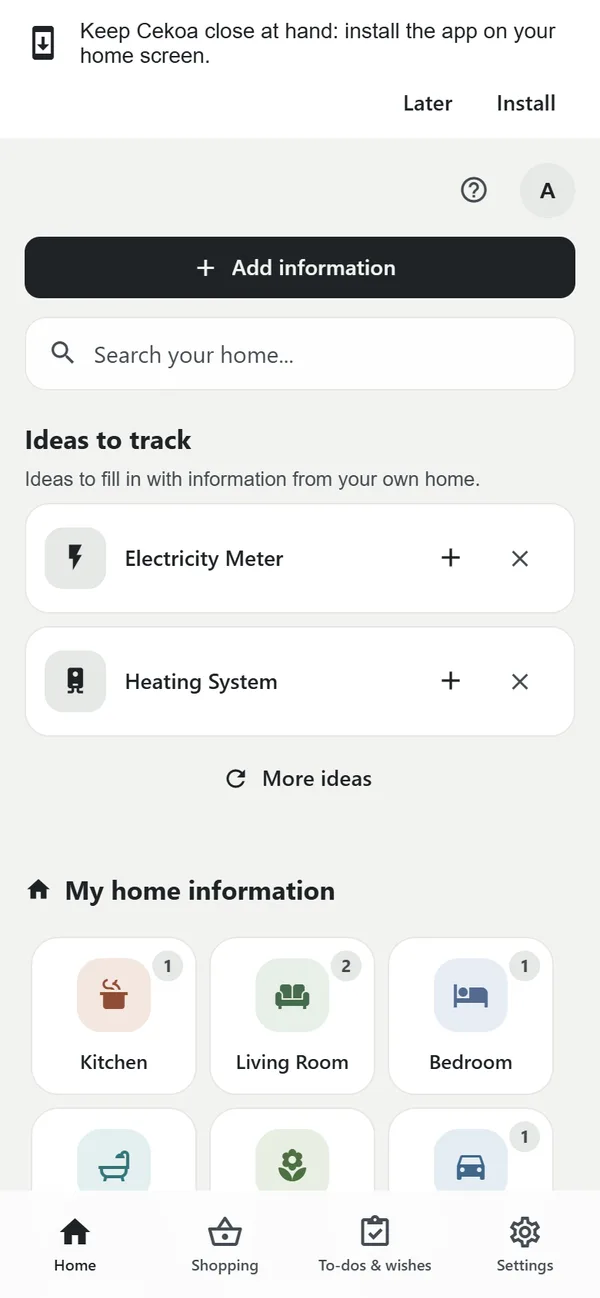
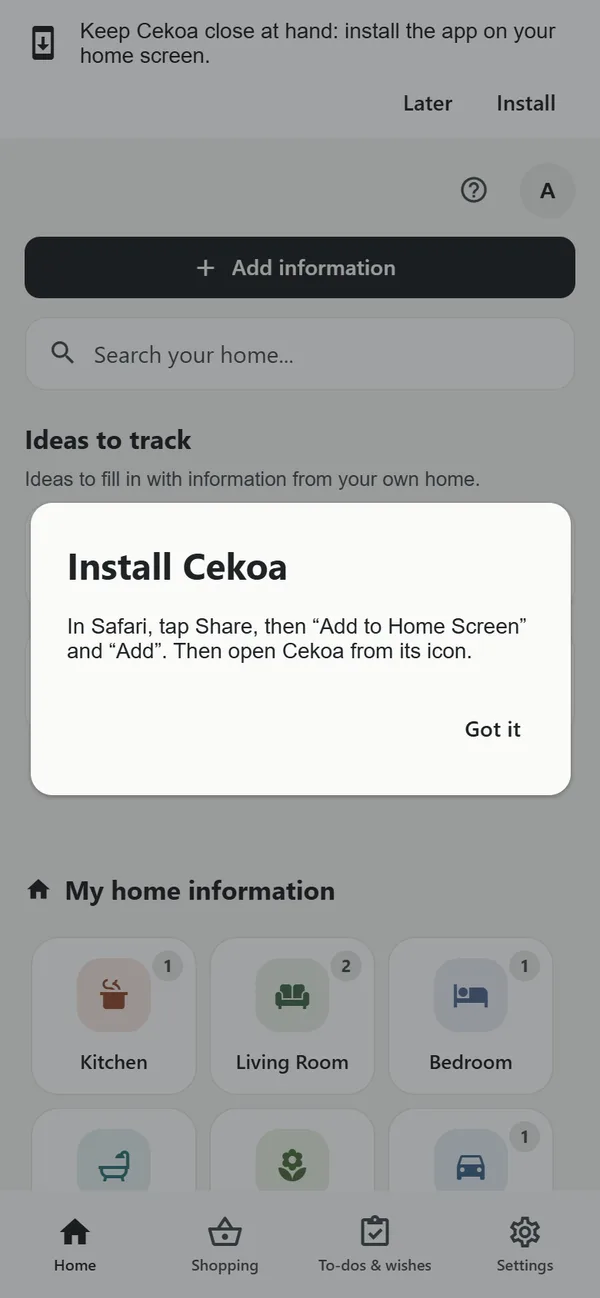
“Later” hides the banner for the current session. It comes back on a later visit until the app is installed.
3Home information
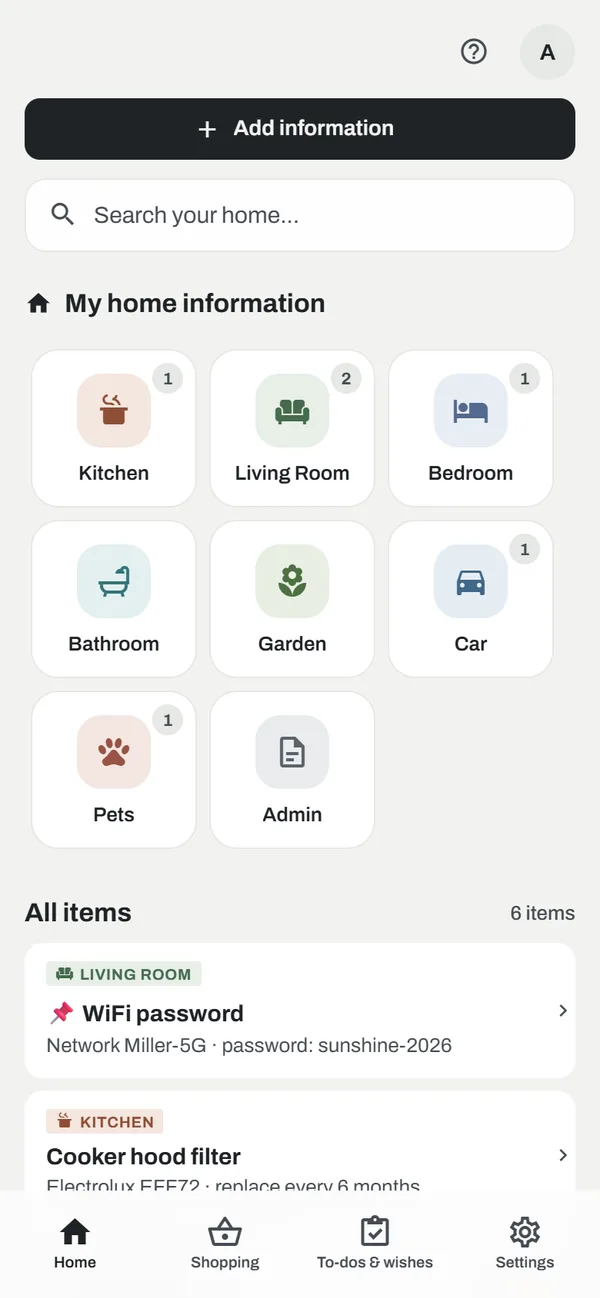
The Home tab gathers everything your household needs to remember: WiFi password, bulb reference, paint colour, vet contact, tyre size…
Browse and search
- The rooms under My home information show how many entries they contain. Tap a room to filter the list, then All to see everything again.
- Search your home… finds an entry by title, value or tags. Recent searches are suggested.
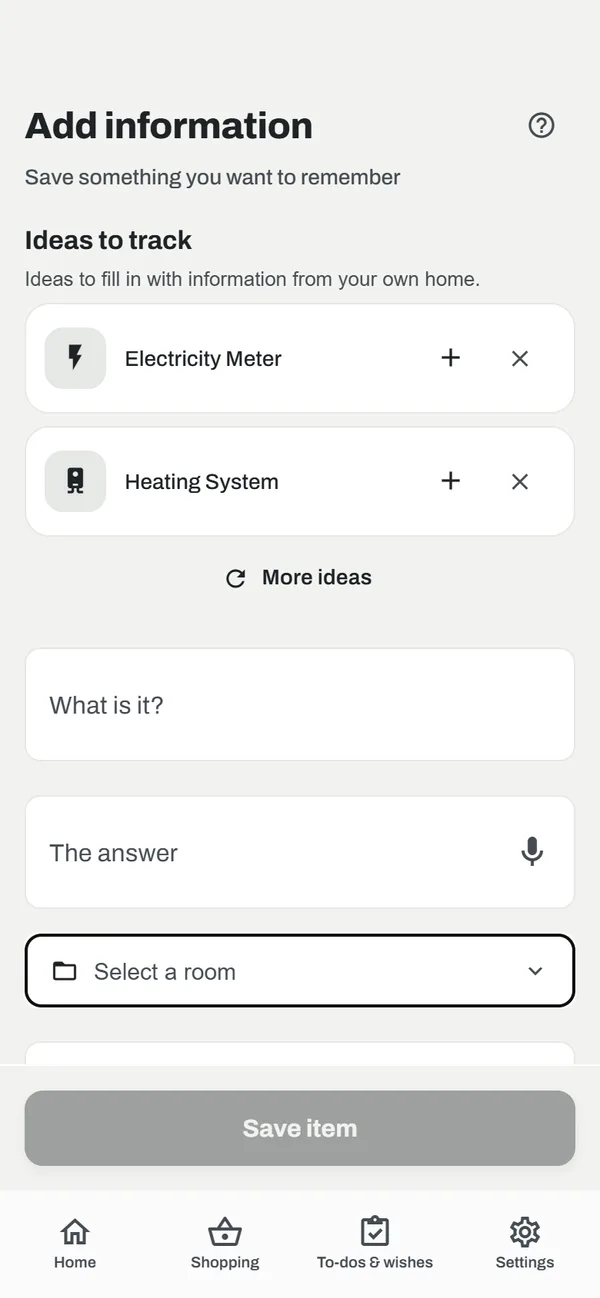
- Under Ideas to track, Cekoa suggests useful entries: tap + to add one, ✕ to hide the idea, or “More ideas”.
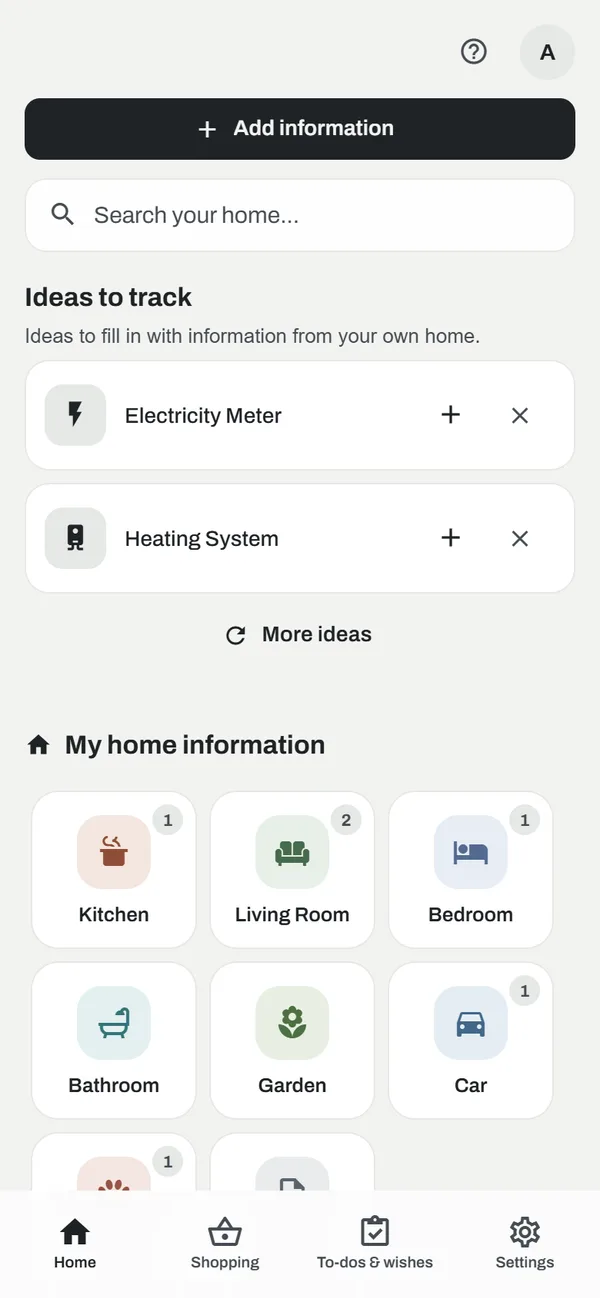
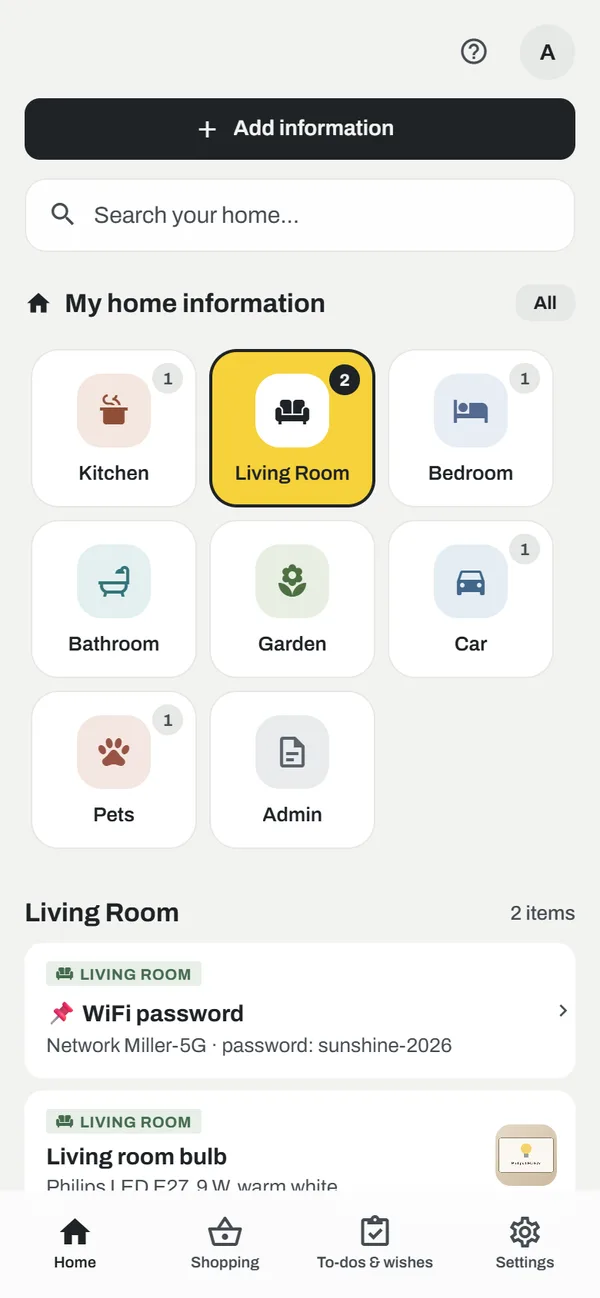
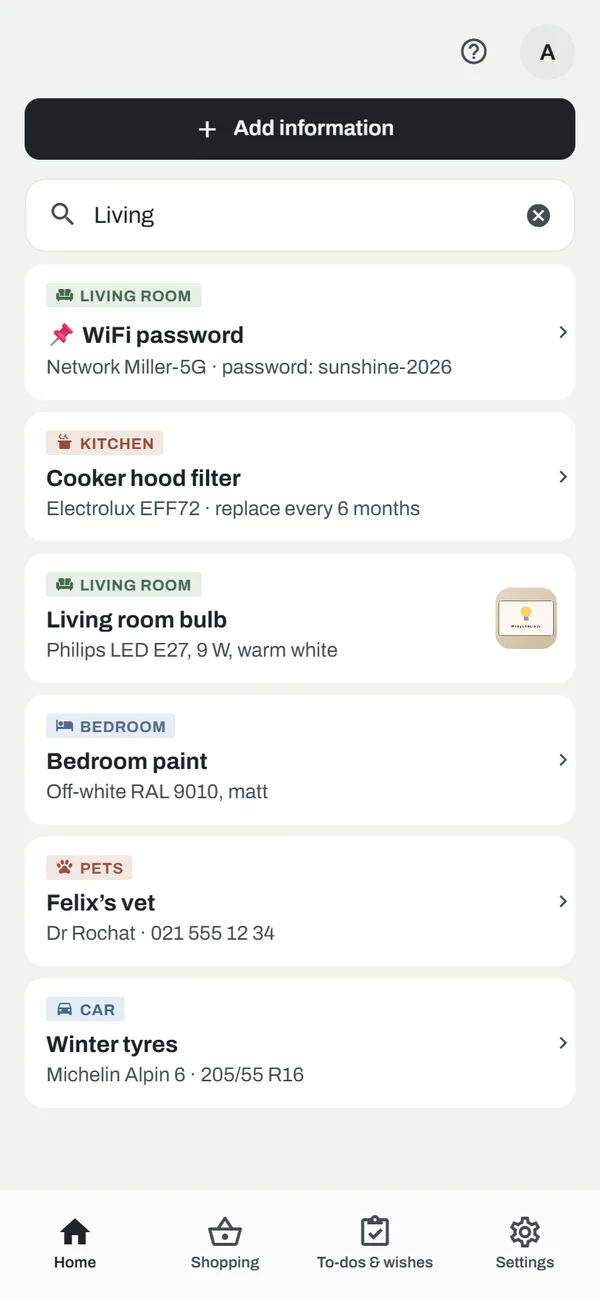
Add information
- Tap + Add information.
- Fill in What is it? (for example “Living room bulb”) and The answer (“Philips LED E27, 9 W”).
- Pick a room in Select a room and add comma-separated tags.
- Optionally attach a photo (Camera or Gallery) or a voice memo, then tap Save item. The entry is shared with the whole household right away.

View, edit or delete
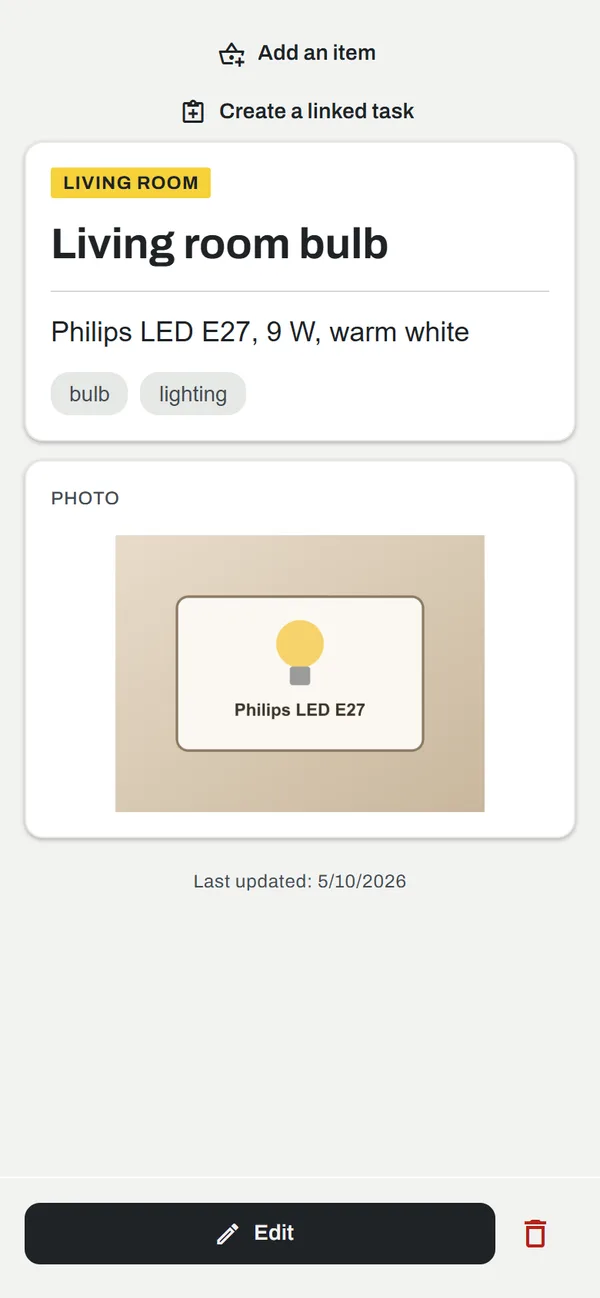
- Tap an entry to open it. Tap the photo to enlarge it.
- Edit changes the text, room, tags, photo or memo; the bin icon deletes the entry after confirmation.
- From an entry, Add an item sends it to the grocery list and Create a linked task prepares a chore (such as “replace the filter”).
- Pin 📌 important entries to keep them at the top.
4The shared grocery list
The Shopping tab is one list for the whole home, updated live for every member.
Add and check off
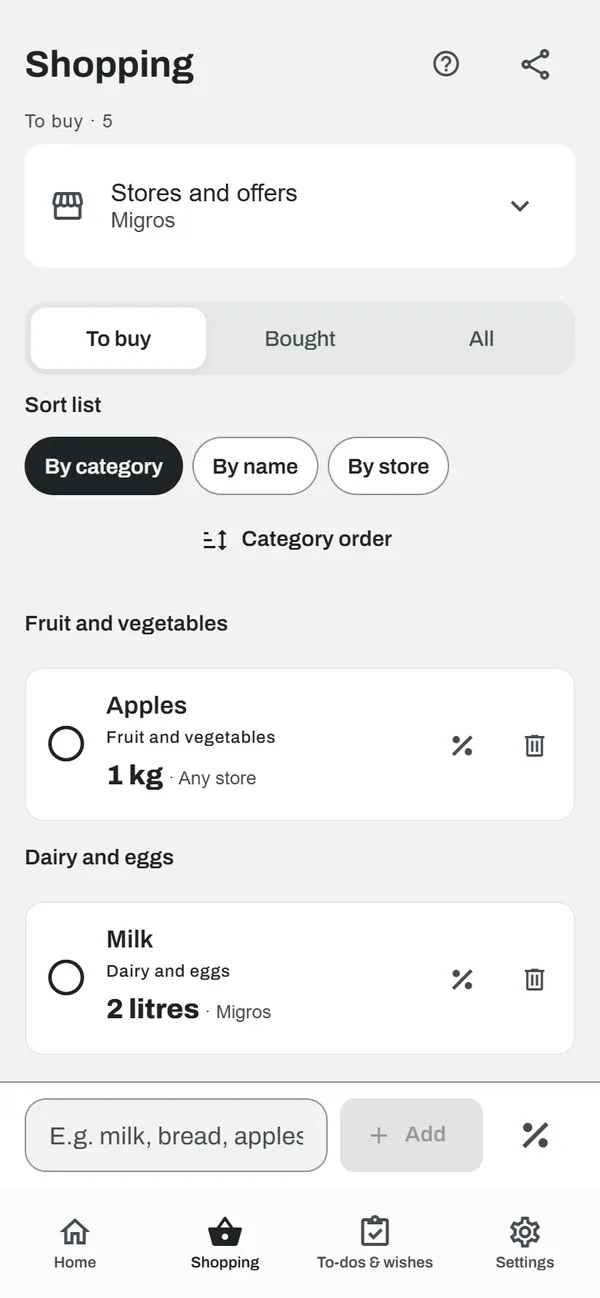
- Type an item in the bottom bar (“E.g. milk, bread, apples…”) and tap Add. It is sorted into its aisle automatically (fruit and vegetables, dairy…).
- Tap the circle on the left once an item is in your basket: it moves to Bought.
- Tap % to mark an item as on offer. This marker is independent of the purchase.

Item details
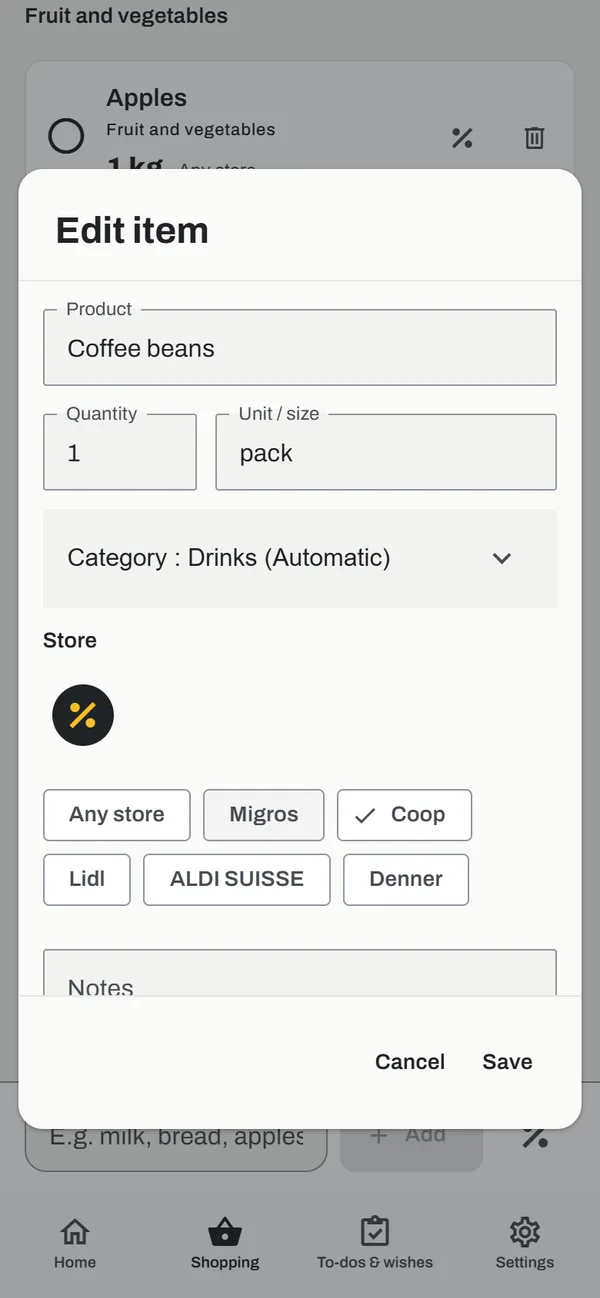
Tap an item to edit it: product, Quantity (1 to 999), Unit / size, category (automatic or chosen), Store (Migros, Coop, Lidl, ALDI SUISSE, Denner or “Any store”), % offer and Notes (brand, alternative…).
Organise the list
- The To buy, Bought and All tabs filter the list. A bought item goes back on the list with Buy again.
- Sort list: By category, By name or By store. Category order follows your route through the store and is remembered on the device.
- The share icon at the top sends the list of items to buy by message.
- The bin removes an item for the whole household.
Stores and offers
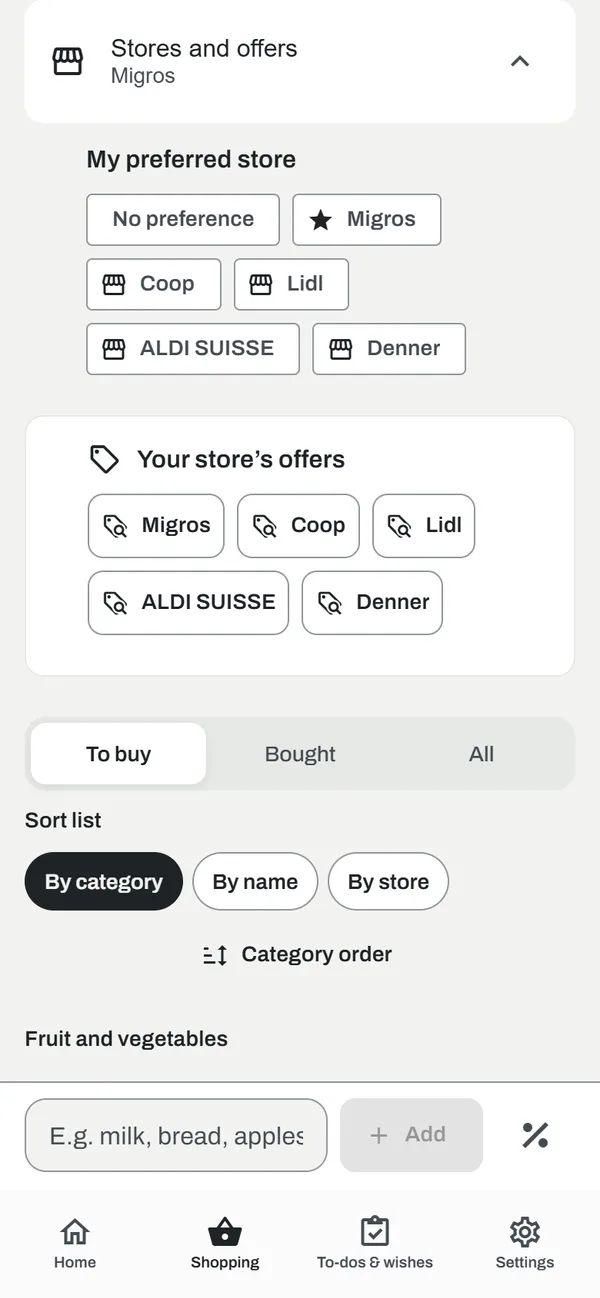
Choose My preferred store: it is used by default for your next items. The buttons under Your store’s offers open the official promotion pages. On the web they open on the store’s website; prices are not imported into Cekoa.
5To-dos & wishes
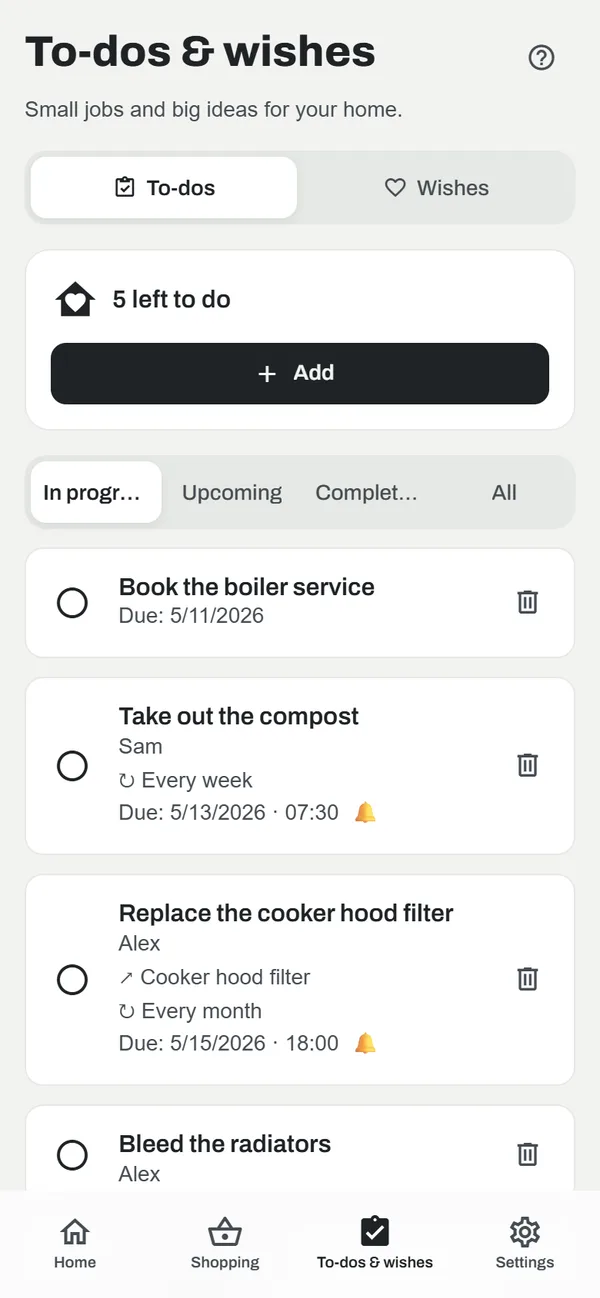
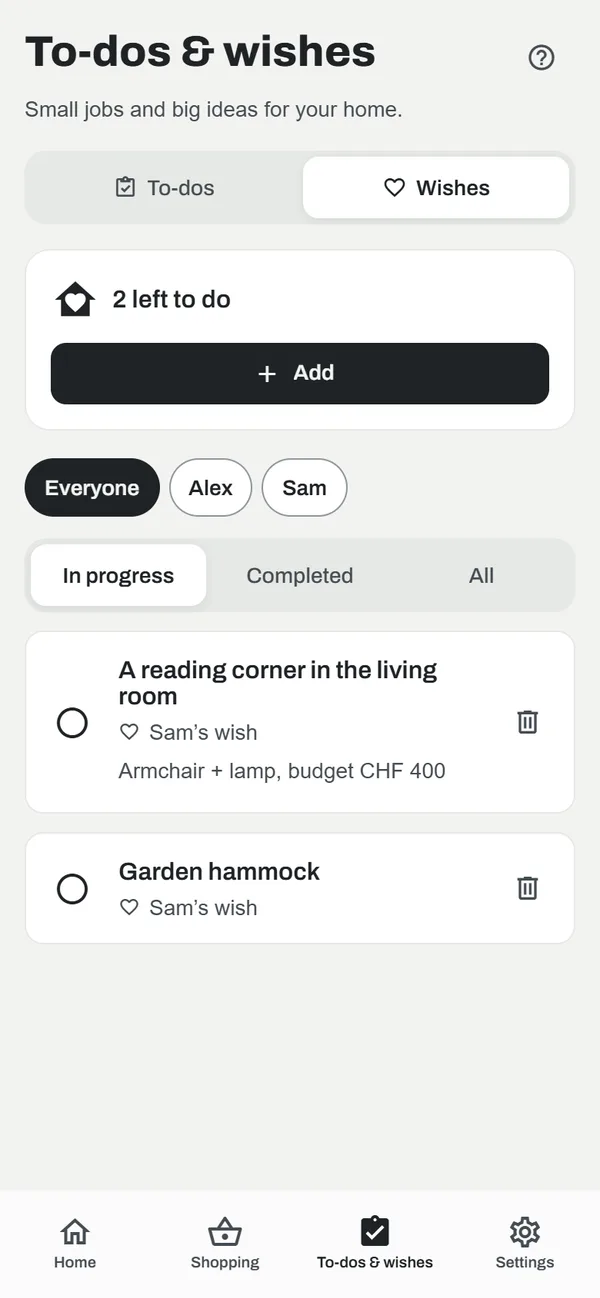
The To-dos & wishes tab has two sub-tabs: To-dos for small jobs and Wishes for each household member’s projects or dream purchases.
Create a task
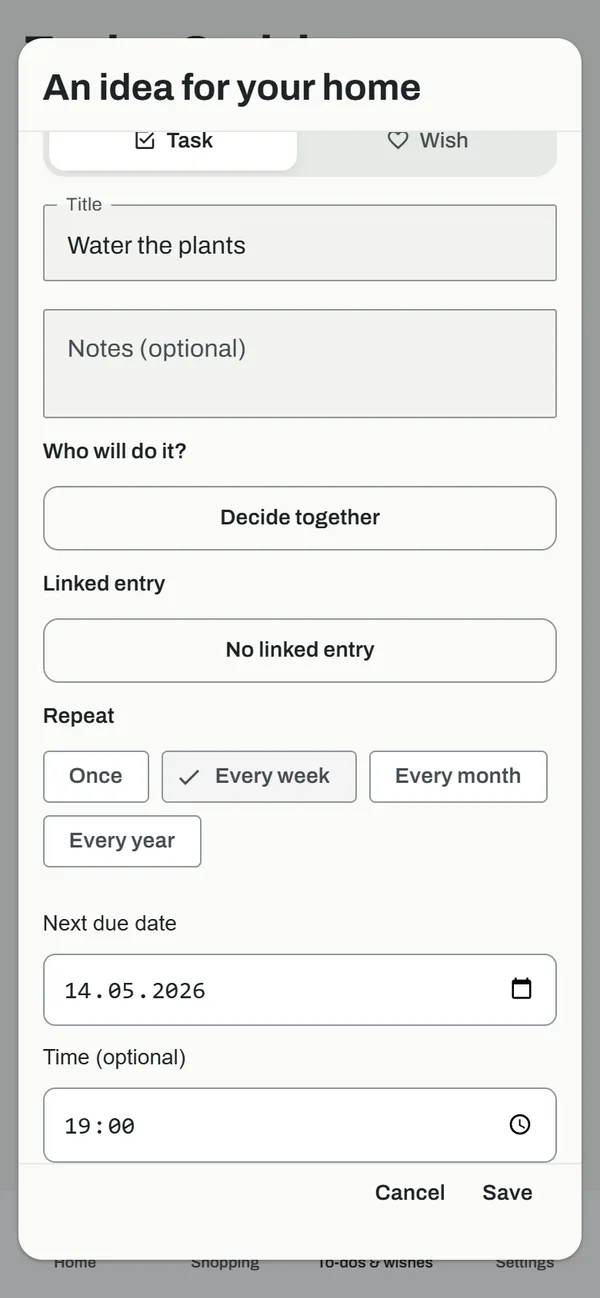
- In To-dos, tap + Add, keep Task selected and enter a Title and optional notes.
- Who will do it? assigns the task to a member, or leaves it to “Decide together”. Linked entry connects it to a piece of home information.
- Choose Repeat: Once, Every week, Every month or Every year. For monthly tasks, choose Same date or Day of the week (for example “First Saturday of the month”).
- Set the Next due date and an optional time. A repeating task needs a date.
- Tap Save.

Follow up and complete
- Tasks are sorted by due date: Overdue first, then the next due dates (and times), then tasks without a date.
- Yearly tasks (birthdays, boiler service…) stay at the bottom of the list and move into place two days before they are due.
- Tap the circle to complete a task. For a repeating task, Cekoa schedules the next due date at the same time, without piling up missed periods.
- The filters In progress, Upcoming, Completed and All narrow down the view. In Wishes, each wish shows who made it (Wished by); tap a member’s name to see only their wishes. Tap an entry to edit it, the bin to delete it.
Reminders
With a date and time, switch on Reminder for this task. Reminders are notifications from the Cekoa phone app: the assigned person receives them, or the whole household if nobody is assigned, on phones where Cekoa has been opened and notifications are allowed. On Android, also allow Precise reminders to keep the exact time. Open Cekoa regularly to renew the schedule.
6Household and settings
The Settings tab holds your profile, the household and app preferences.
Invite and manage members
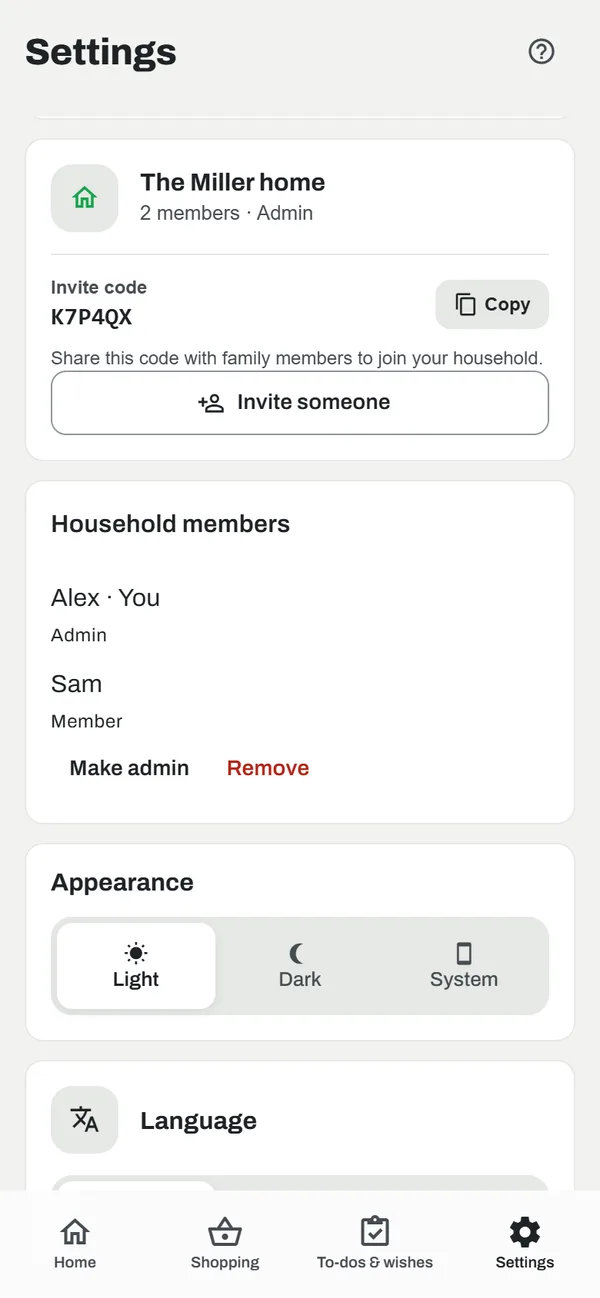
- In the household card, tap Copy next to the Invite code, or Invite someone to send a ready-made message.
- The invited person creates an account, chooses Join and enters the code.
- In Household members, an admin can Make admin, Make member or Remove someone. Removing a member creates a new invite code.
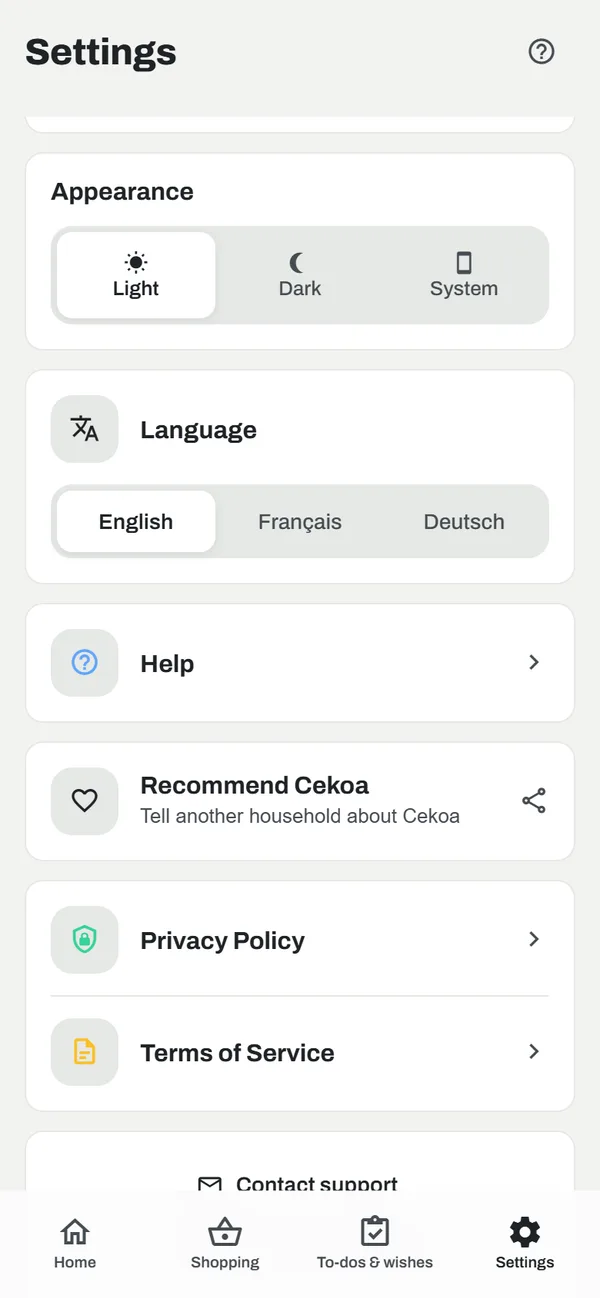
Personalise
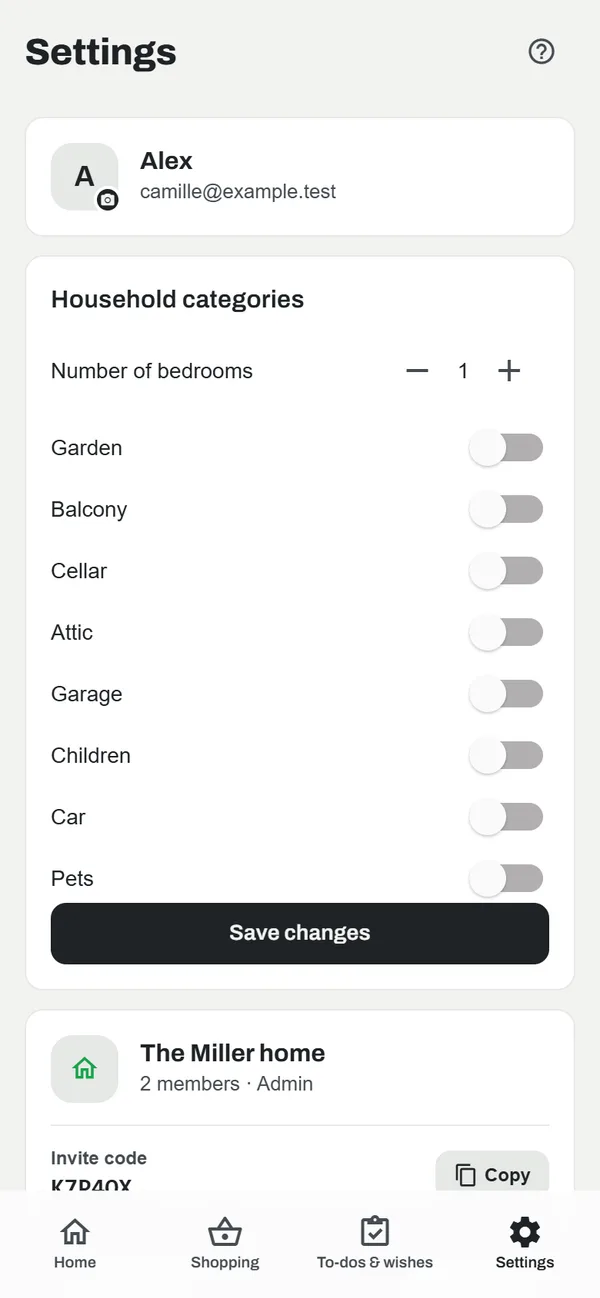
- Profile: tap your photo to change it.
- Household categories (admin): number of bedrooms and active areas, then save.
- Appearance: Light, Dark or System (follows your phone).
- Language: English, Français or Deutsch, at any time.
- Recommend Cekoa shares a link to Cekoa with another household.
7Using Cekoa offline
After one visit online, Cekoa opens even without a connection, for example at the back of a shop.
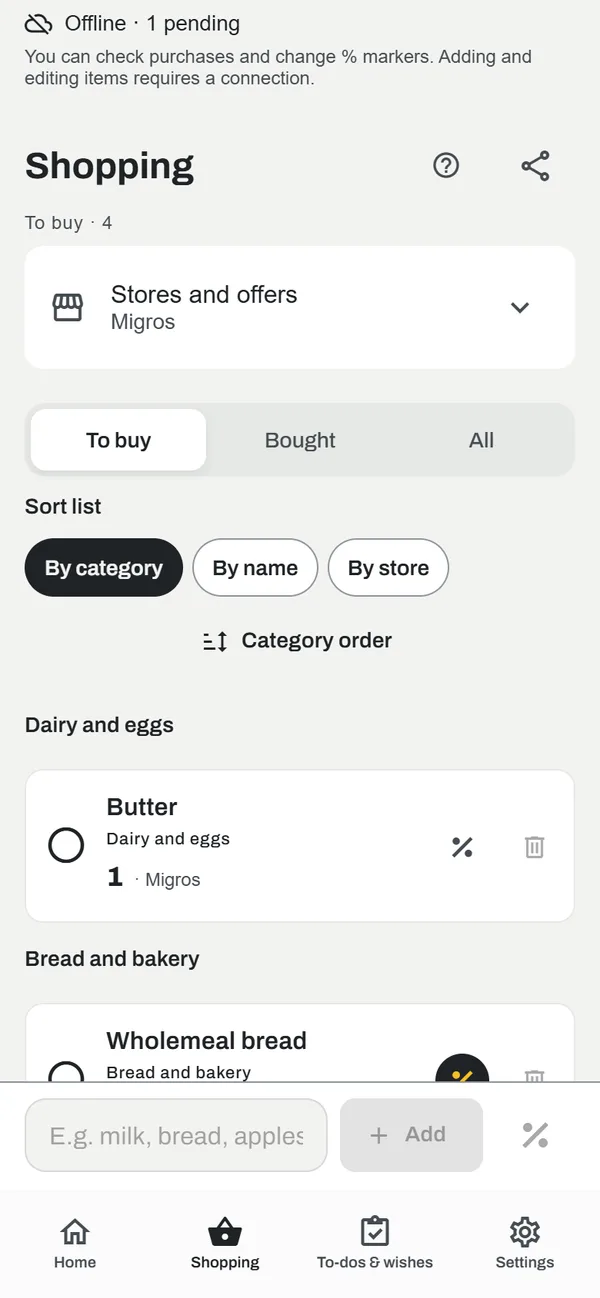
- In Shopping you can view the list, check off purchases and change % markers. An Offline banner shows how many changes are pending.
- Changes are sent automatically when the connection returns. If another member deleted an item you changed in the meantime, it is simply removed from your list.
- Adding items, editing details, changing your preferred store or browsing offers requires a connection.
8Help in the app
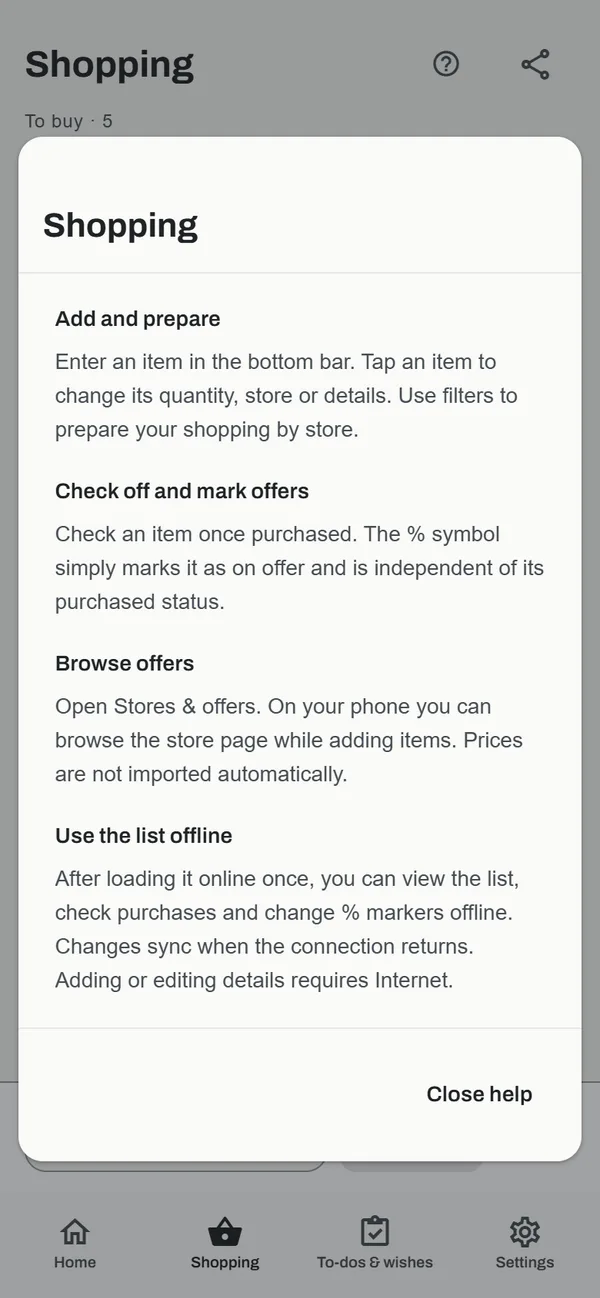
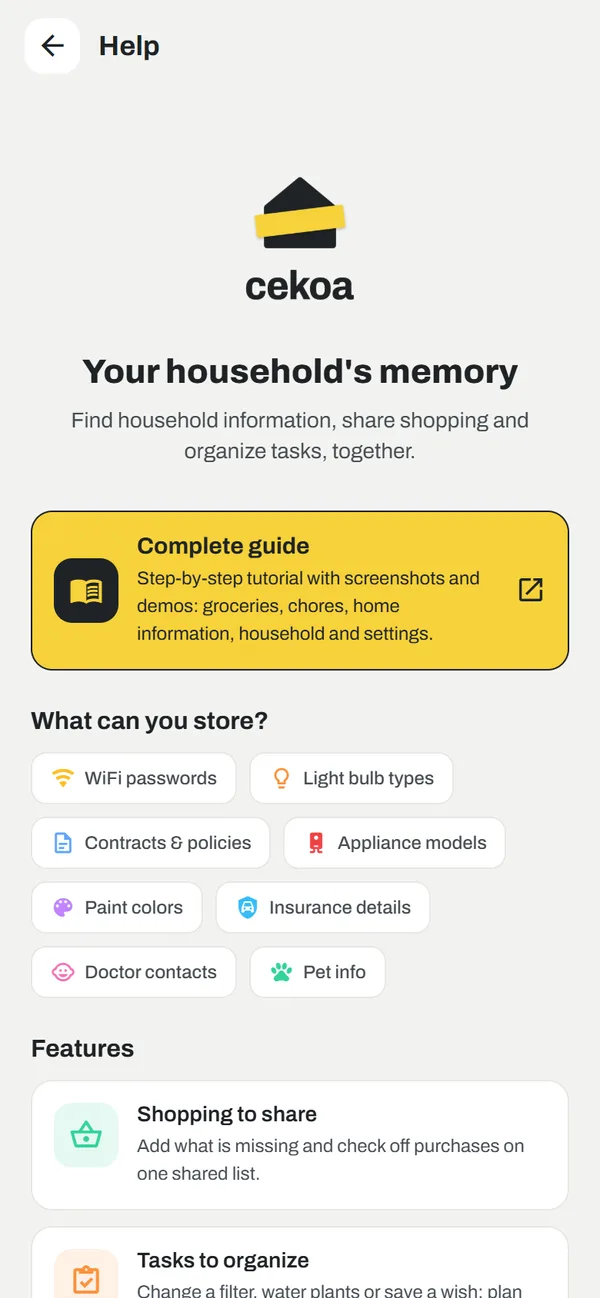
Every tab has a ? button at the top right that explains the screen in a few lines. In Settings → Help, the Complete guide card opens this guide.
9Account and security
Forgot your password
- On the sign-in screen, tap Forgot password? and enter your email.
- Open the link you receive and choose a new password of at least 8 characters. The link expires: request a new one if needed.
Sign out and delete your account
Sign out is at the bottom of Settings. Delete my account erases your account, profile and the content you created, after an explicit confirmation; other members’ content remains available. You can also request deletion from the Delete my account page.
10Frequently asked questions
Do other members see my changes right away?
Yes. Groceries and chores sync automatically; an open list updates when another member changes it.
Can I use Cekoa on a computer?
Yes, open app.cekoa.ch in your browser. The layout adapts to large screens with side navigation.
Why am I not getting reminders?
Check that a date and time are set, the reminder is on, Cekoa notifications are allowed on the phone and, on Android, that “Precise reminders” is allowed. If the task is assigned, only that person gets the reminder.
Are offer prices imported?
No. Cekoa opens the stores’ official pages; the % simply reminds you that an item is on offer.
How do I switch household?
Ask an admin of your current household to remove you, then join the new household with its invite code, or contact support.
11Contact
Question not covered here? See the Support page or write to support@cekoa.ch. Include your phone, the Cekoa version and the steps to reproduce, but never your password.